 Dumpling Dash
How to turn off in-app purchases on Android for kids
Three layers of protection a parent can set up in about ten minutes, in plain words, plus what these settings do not cover.
In this guide
To turn off in-app purchases on Android for a child, open the Google Play Store, tap your profile picture, go to Settings, then Authentication, and set "Require authentication for purchases" to every purchase on this device. If your child has their own Google account, use Google Family Link to require your approval for purchases. These settings only cover purchases made through Google Play billing, so it is still worth checking how each game makes money.
A child taps a shiny button, the phone says "Buy", and a few seconds later there is an email receipt nobody expected. It happens in a lot of families, and it is rarely on purpose.
The good news: Android has solid built-in tools to stop it. You do not need extra apps. This guide shows how to turn off in-app purchases on Android, or rather how to lock them behind your password, in three layers. Use one, or stack all three on a phone your child uses often.
Menu names can differ a little between Android and Play Store versions. If a label on your phone looks slightly different, look for the closest match.
Why Android does not have one "off" switch
On an iPhone there is a single setting that blocks purchases inside apps. Android works differently. Almost every paid item in a Google Play app goes through Google Play's own billing system, so the way to stop purchases is to control who can approve a payment:
- On a shared phone that is signed in to your account, you ask Google Play to ask for your password every time.
- On a child's own Google account, you use Family Link so every purchase needs your approval from your own phone.
Either way, the child can still see a "Buy" button in a game. What changes is that tapping it leads to a password or an approval request instead of a payment.
Layer 1: Ask for a password on every purchase
This is the fastest fix and works on any Android phone or tablet with the Play Store.
- Open the Google Play Store app.
- Tap your profile picture in the top right corner.
- Tap Settings, then open Authentication.
- Tap Require authentication for purchases.
- Choose For all purchases through Google Play on this device.
- Enter your Google account password to confirm.
Now every purchase through Google Play, inside any app, asks for the password first. The other choices on that screen ask only once every 30 minutes, or never, so a child who plays straight after you bought something could still buy without being asked. Pick the strictest one.
Layer 2: Use Family Link for your child's own account
If your child is old enough for their own phone or tablet, the best setup is a Google account made for them and managed by you with Google Family Link. Children's accounts managed this way need a parent's approval before purchases, and you can control them from your own phone.
- Install the Google Family Link app on your phone.
- Create or add your child's Google account and follow the setup on both devices.
- In Family Link, select your child and open Controls.
- Go to Content restrictions, then Google Play.
- Open Purchases & download approvals and choose the level you are comfortable with, for example approval for all content, or only for paid content and in-app purchases.
When your child taps "Buy", you get a request on your phone and can approve or decline it. While you are in the Google Play settings in Family Link, you can also set content ratings for apps and games.
Layer 3: Tidy up payment methods and family sharing
Passwords and approvals do the heavy lifting. A few extra habits close the remaining gaps:
- Check saved payment methods. In the Play Store, tap your profile picture, then Payments & subscriptions, then Payment methods. Remove any card you do not want used on this device.
- Look at your family payment method. If you run a Google family group, the family manager's payment method can be shared with members. Make sure purchase approvals are on for children in the group.
- Do not share your password. If a child has watched you type it, change it. The whole system rests on that password being yours alone.
- Check your receipts. Google sends an email for each purchase. A quick look now and then shows whether anything slipped through.
What these settings do not cover
These steps stop purchases. They do not stop ads. A free game can still show ads, and some ads offer rewards for watching a short video. Google Play's purchase controls do not change that, because no money changes hands.
So, alongside the settings, it helps to know how each game earns money before your child plays it:
- Does the game sell anything? The Play Store listing shows "In-app purchases" under the install button when a game has them.
- How are ads shown? Look for games where reward videos are optional and ads stay out of the way during play.
- Is there a grown-up check? Good kids' games put a parental gate, a quick question only an adult can answer easily, in front of outside links.
How Dumpling Dash handles this
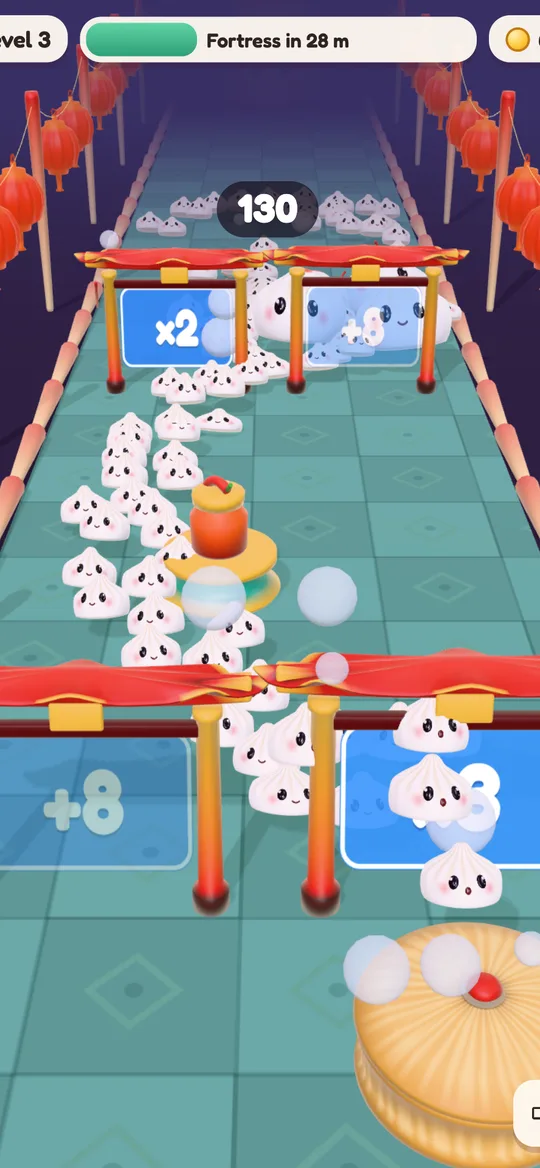
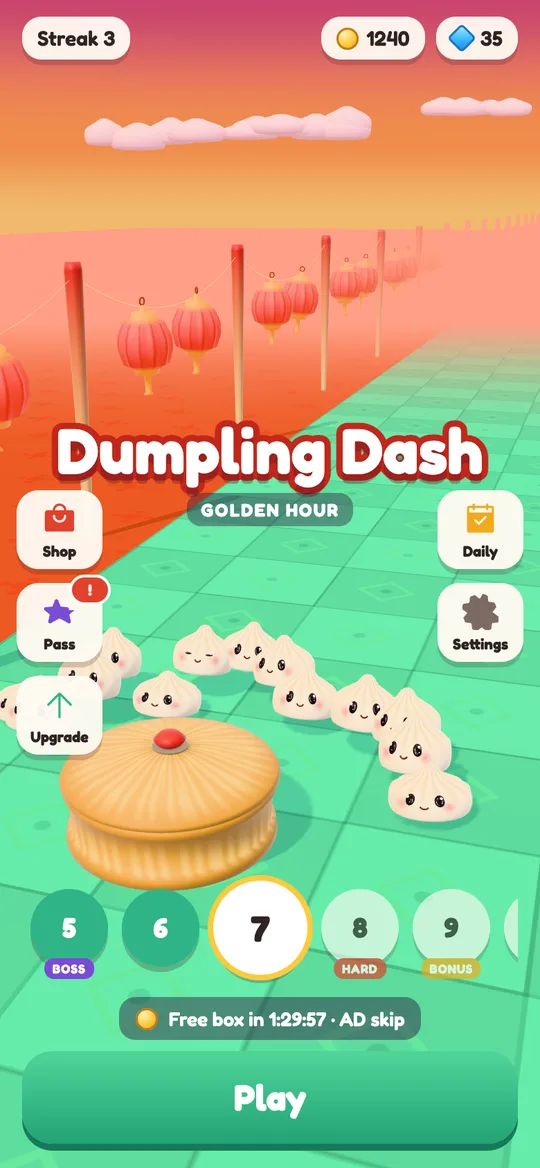
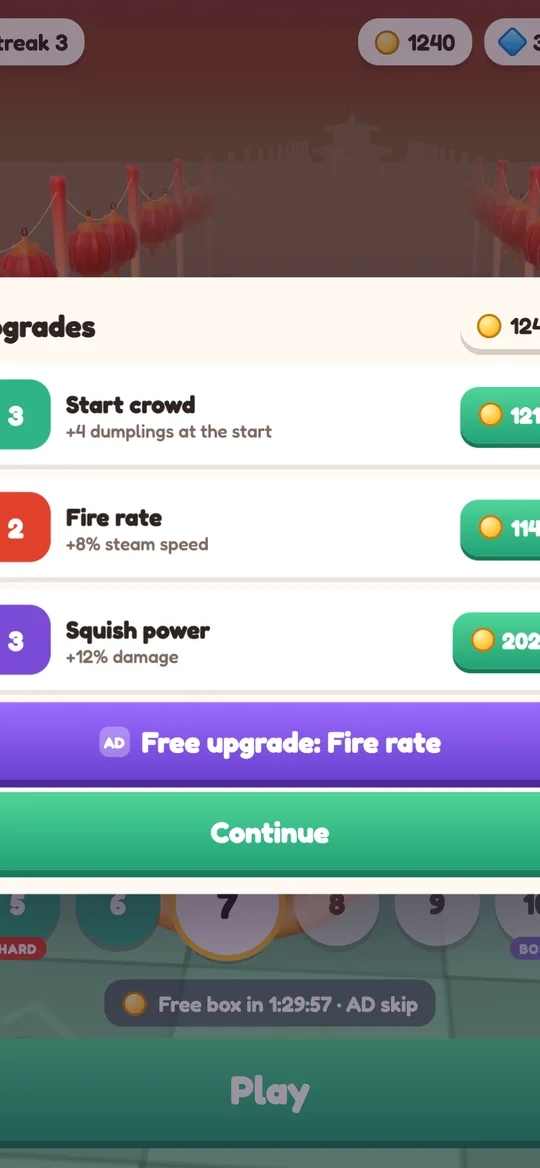
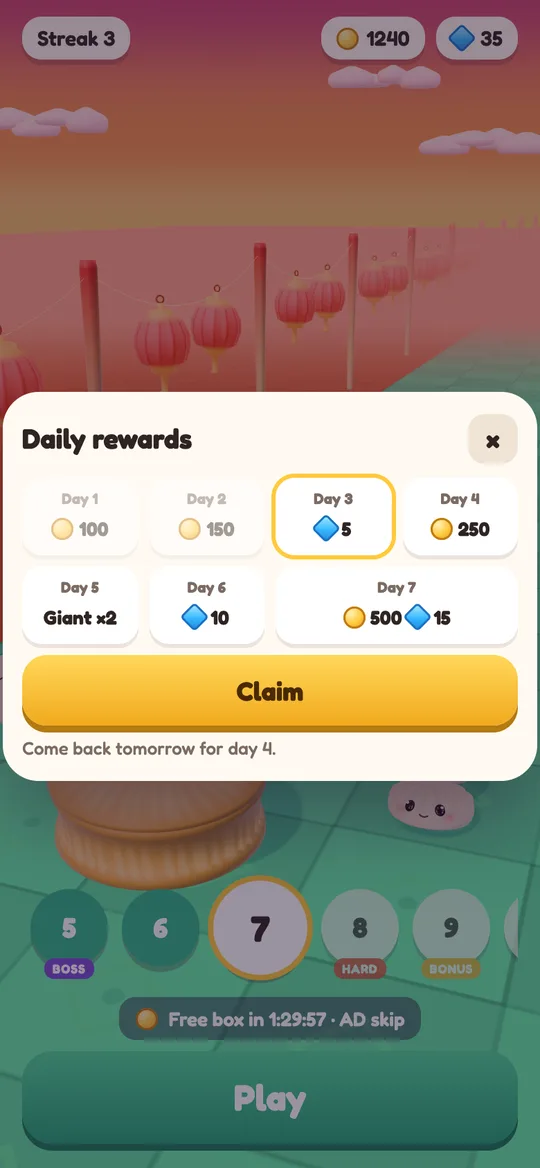
We make Dumpling Dash, a cute crowd runner, so here is how our own game fits in. It has no in-app purchases at all. There is nothing to buy with real money. Coins, gems, skins, boosts and the Dumpling Pass are earned by playing, from daily rewards and the free box, or with an optional video marked AD.
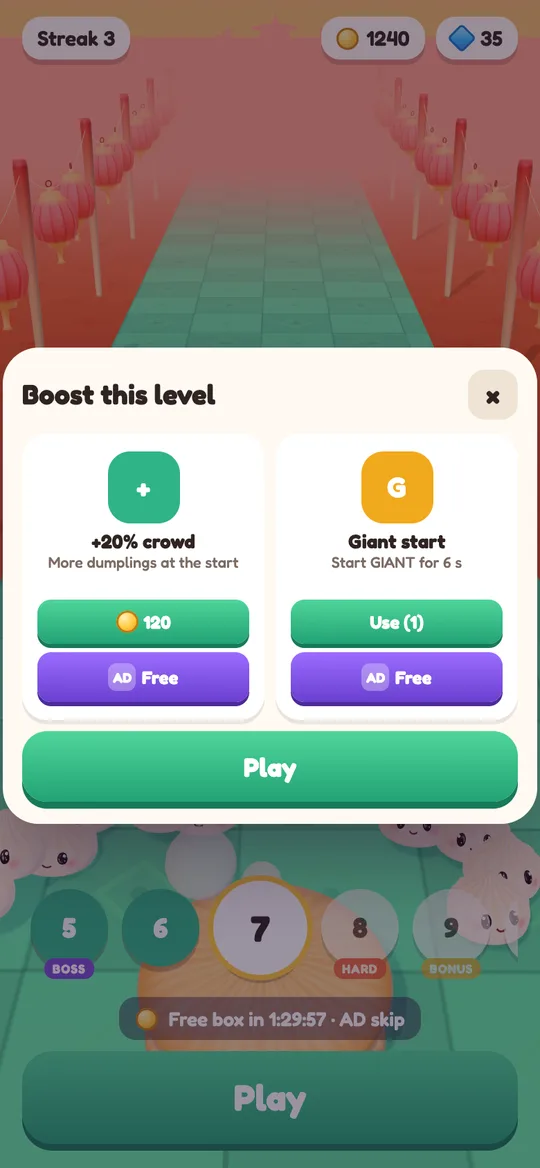
Ads are G-rated. Players under 13 get child-directed, non-personalised ads, and a grown-up question protects outside links and Delete my data. Our parents' guide to Dumpling Dash explains ads, data and the age question in full. If you want to see what your child will actually be doing in a level, our beginner's guide walks through one step by step.
Even so, we would still switch on the Play Store password check on any phone a child uses. It costs nothing and protects every other app on the device too.
FAQ
Can I turn off in-app purchases completely on Android?
Android has no single switch that removes in-app purchases. Instead, set Google Play to require your password for every purchase, or use Family Link so each purchase on your child's account needs your approval.
Does "Require authentication for purchases" work in every app?
It covers purchases made through Google Play's billing system, which is how almost all apps from the Play Store sell items. It does not cover payments a website or app takes outside Google Play.
What is the difference between this and Family Link?
The password setting protects one device that is signed in to your account. Family Link manages your child's own Google account, sends approval requests to your phone and also lets you set content ratings and screen time.
Will these settings stop ads in games?
No. Purchase controls only stop payments. To limit ads, choose games that keep reward videos optional and show ads only outside play, and check each game's listing and privacy policy.
Does Dumpling Dash have in-app purchases?
No. Dumpling Dash has no in-app purchases. Everything in the game is earned by playing or by watching an optional video marked AD.